
SCADA Software
Common ATSCADA Errors and How to Fix Them – FAQ for ATSCADA Tools and Systems
Issues Related to ATDriverServer & iTagBuilder Software
Why Does ATDriverServer Not Open?
There are two common cases when ATDriverServer does not open properly, which are typical ATSCADA Common Errors.
- Case 1: When launching the software, ATDriverServer does not appear on the screen. In this situation, the program may already be running but is hidden in the taskbar tray area. You can check as shown in the image.

Case 2: When running ATDriverServer, the software does not display on the screen and is also not visible on the taskbar. In this case, open Task Manager to check whether ATDriverServer is frozen or still running in the background. If found, select End Task and restart the software. This is one of the most common ATSCADA Common Errors.

Error when running ATDriverServer & iTagBuilder application due to lack of permissions\
Run as Admin
=> In case ATDriverServer & iTagBuilder is launched, the following error will appear on the main interface:
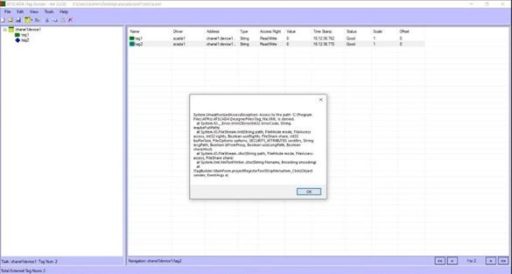
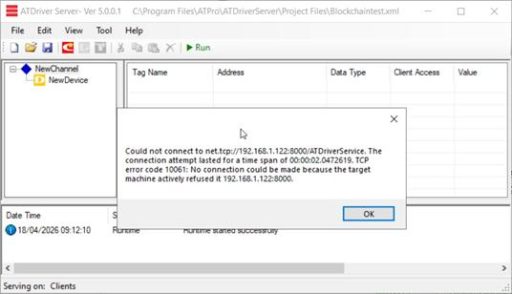
This error occurs because the application is missing Run as Administrator permission. Simply close all running applications and restart them using Run as Administrator mode to use the software normally again. This is one of the typical ATSCADA Common Errors.
Error When Running ATDriverServer & iTagBuilder with TagNames Continuously Showing BAD Status or Unable to Read Values
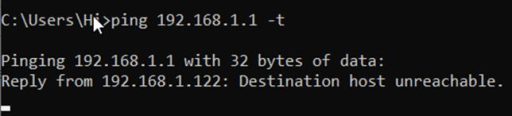
You should check the software connection again. If the connection uses TCP, use the ping command in CMD to test the network signal of the device, especially in power management systems using remote meters.
This issue is one of the most frequent ATSCADA Common Errors. The main cause is usually an unstable connection signal to the sensor, resulting in TagNames showing BAD status.
You should check the software connection again. If the connection uses TCP, use the ping command in CMD to test the network signal of the device.
Error when iTagBuilder application cannot scale values
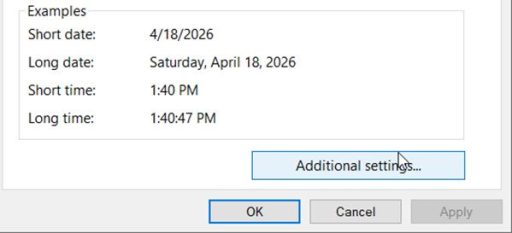
=> In this case, the cause is that the Number Format of the computer running the software is incorrect. To fix this, go to
Control Panel => Change date, time, or number format in Clock Region
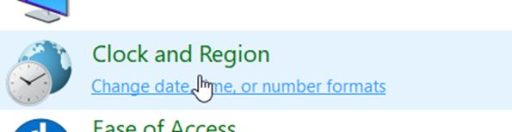
Select Additional Settings
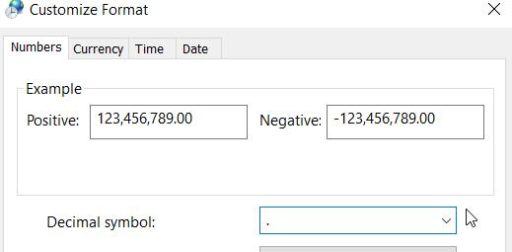
In the Decimal Symbol field, we must use the correct format, which is a dot (.), especially for hospital temperature humidity monitoring systems where decimal sensor values are common.
Issues related to the Tools/Components
Error: iDataReporter tool cannot add column settings.
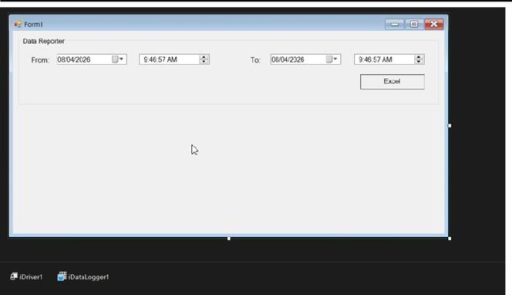
If you encounter a situation where you pull up the iDataReporter tool, prepare to set up Column Settings to add columns to export data, but cannot select the column to add, as shown in the image below:
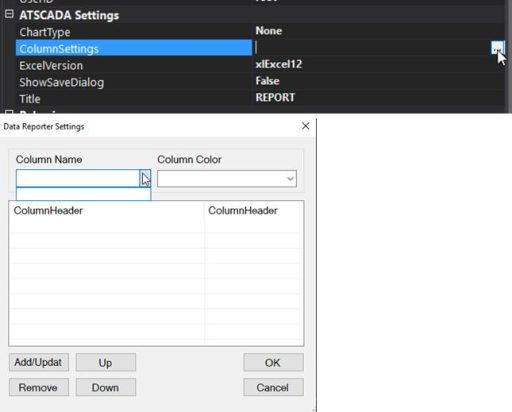
The cause of this issue is the missing initialization of the iDataLogger tool. These two tools must always work together and need to be created in the correct order. If you only drag iDataReporter into the project, this problem may occur. This is one of the common ATSCADA Common Errors.
Solution
First, drag iDataLogger into the project, then configure the Collections settings:
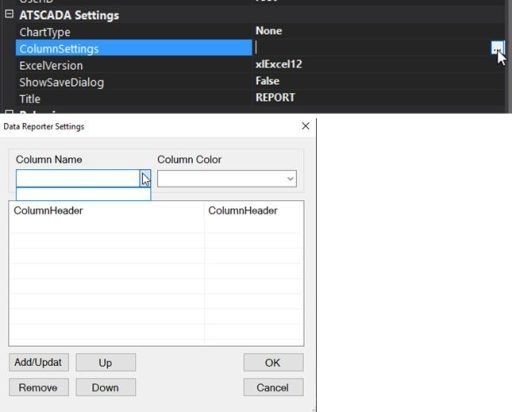
The problem is due to the missing initialization of the iDataLogger tool. These two tools must be created together and in order. If you only pull out iDataReporter, you will encounter this issue.
The solution is as follows:
Pull out iDataLogger first, then declare Collections:
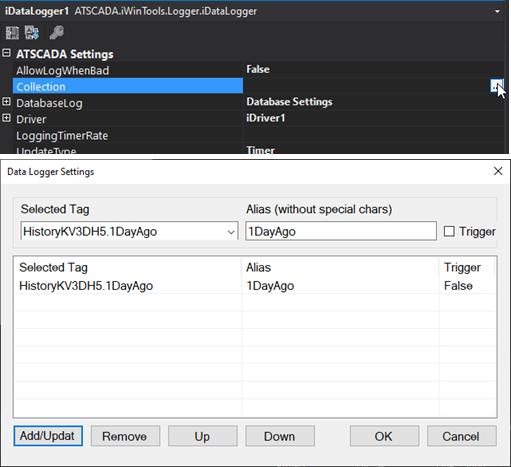
Click OK to save the settings. Then run the software so that iDataLogger can automatically create the Database and Tables if they do not already exist.
After the process is completed successfully, reopen the iDataReporter tool. You will see the Column Settings along with the configured columns previously set in iDataLogger. This is one of the common ATSCADA Common Errors.
iSymbolFactory Tool Does Not Display Images
After installing the iSymbolFactory library from the Resource package and running it for the first time, you may encounter the following error. This is another typical ATSCADA Common Errors issue.
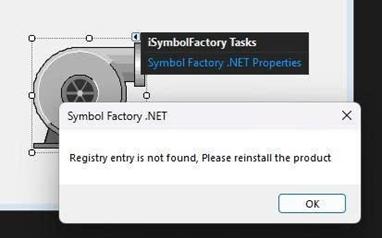
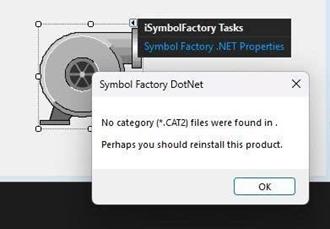
I clicked OK, but when I went inside, I didn’t see any images.
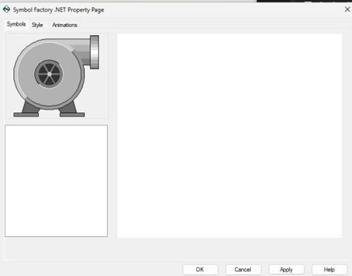
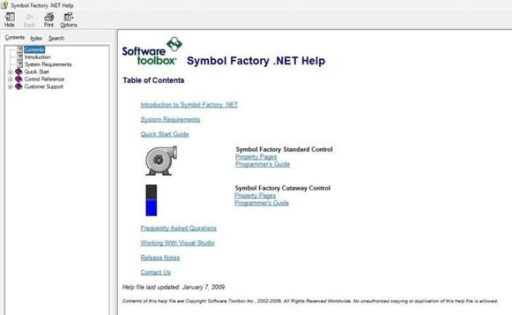
Now we will need to install the SymbolFactory.Net.exe file located in the same iSymbolFactoryTools folder.

Once the installation is complete.
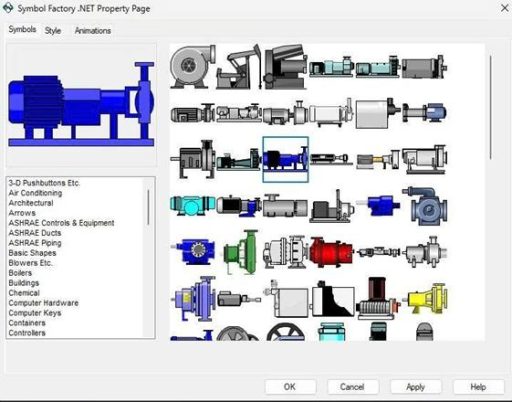
If you go back to Symbol Factory in Visual Studio and test it again, you will see the Symbol Factory library.
👉 Learn More about ATSCADA Software


ATSCADA - Smart SCADA Software with AI Predictor & Blockchain. ATSCADA is an advanced SCADA software platform for real-time monitoring, intelligent control, and efficient data acquisition. It is ideal for Industrial IoT (IIoT), smart cities, integrated automation systems, and Agriculture 4.0. With a built-in AI Predictor, ATSCADA enables predictive analytics to detect issues early, optimize performance, and reduce downtime. The integration of Blockchain technology ensures secure, transparent, and tamper-proof data management. Highly scalable and easy to integrate, ATSCADA is trusted by businesses to enhance productivity, strengthen cybersecurity, and accelerate digital transformation.
Bài viết liên quan
ATSCADA CookBook: Complete Guide to System Architecture, Tools, Installation & Troubleshooting
The ATSCADA Training book is an essential navigation structure that helps users access all major [...]
Apr
ATSCADA Power Management System
Requirements: There are 3 areas that require power management, including a factory, a residential zone, [...]
Apr
ATSCADA Hospital Temperature and Humidity Monitoring Alarm System Project
Requirements: The system includes three monitoring areas: the pharmacy, inpatient warehouse, and cold storage, following [...]
Apr
ATSCADA Project Deployment Guide: Create and Run Projects on Another Computer
ATSCADA Project Deployment is an essential process for transferring a completed SCADA project from the [...]
Apr
How to Create a New Custom Component for Windows Forms Applications
Purpose of the Component This ATSCADA Custom Component is designed to automatically accumulate values from [...]
Apr
ATSCADA Blockchain Toolkit – Secure Industrial Data Management with Smart Technology
Introduction Real-world issues in industrial SCADA systems SCADA data is the lifeblood of smart factories, [...]
Apr