
SCADA Software
ATSCADA iLean System – Advanced Lean Manufacturing & Smart Automation Tools
ATSCADA iLean is a specialized toolset designed to calculate and display production management KPIs such as OEE (Overall Equipment Effectiveness), TEEP (Total Effective Equipment Performance), and key metrics related to quality, performance, and availability.
System Preparation and Installation
Step 1: Install the ATSCADA iLeanTools Package
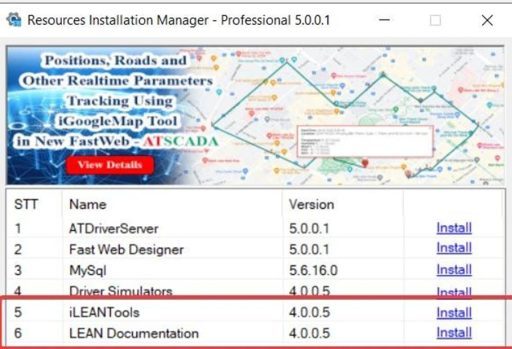
- Open the Resources Installation Manager software.
- Find ATSCADA iLean(Version 4.0.0.5) in the list.
- Click the Install button.
- When the setup window appears, click Install and then Finish to complete the installation.
Step 2: Configure ATDriver Server (Create Data Tags)
This is a critical step to create the data source required for ATSCADA iLean calculation tools.
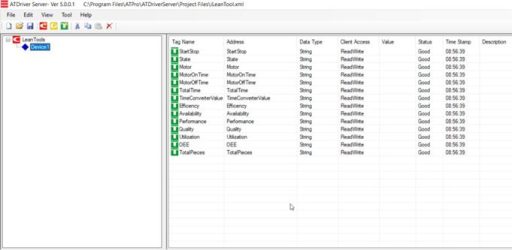
- Open ATDriver Server.
- Go to File -> New.
- Add a Channel:
- Name: LEAN Tool
- Driver: InternalMemory.dll
- Add a Device:
- Name: Device 1
- Create the following Tags (Data Type: String / Double):
- StartStop: Start/Stop control
- State: Machine status
- Motor: Motor status
- MotorOnTime: Machine running time
- MotorOffTime: Machine downtime
- TotalTime: Total operating time
- Efficiency
- Availability
- Performance
- Quality
- Utilization: Lean production KPIs
- TotalPieces: Total products
- GoodPieces: Qualified products
- CSTK: Designed capacity
- Go to File -> Save As and save the configuration as LeanTools.xml.
Step 3: Configure iTagBuilder for ATSCADA iLean
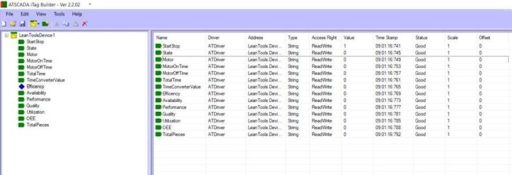
- Open iTagBuilder.
- Select New -> Yes.
- In the Driver Name field, enter ATDriver.
- Click Add Driver and select the file ATDriverClient.dll.
- Enter the IP Address of the computer running Driver Server (for example: 192.168.1.122) or keep the default localhost.
- Click Connect.
- Go to Tools -> Import All.
- Select the Device and click OK.
- Go to File -> Project Register, save the project file, and click Yes to register all tags into the ATSCADA iLean system.
Interface Design in Visual Studio
Step 4: Integrate ATSCADA iLean into the Toolbox
Open Visual Studio and create a Windows Forms App (.NET Framework) project.
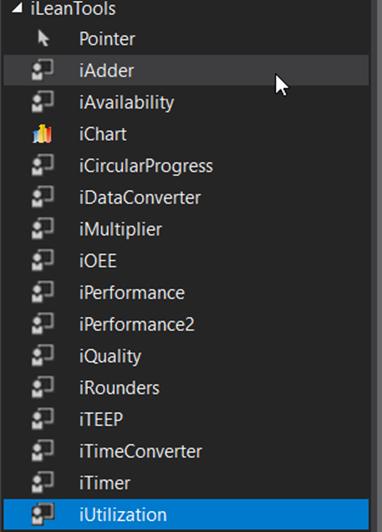
In the Toolbox panel, right-click and select Add Tab, then name it ATSCADA iLeanTools.
Right-click the newly created tab and choose Choose Items…
Click Browse and navigate to the installation directory:
C:\Program Files\ATPro\ATSCADA\iLeanTools\iLeanTools.dll
Click OK. The ATSCADA iLean tool icons such as iAdder, iChart, iTimer, and others will appear in the Toolbox.
Detailed Guide to ATSCADA iLean Tools
Important Note: Always drag the iDriver tool onto the screen before using any other ATSCADA iLean tools.
iDataConverter Tool (Data Conversion)
The ATSCADA iLean iDataConverter tool is used to convert machine status values such as 0 and 1 into readable text like OFF and ON.
Description:
Drag the iDataConverter control onto the Form.
Configuration Settings (Properties):
- Driver: Select iDriver1
- Collection: Click the “…” button to open the configuration table
- Trigger Tag: Select StartStop
- Value 0:
- Target Tag: State
- Display Value: OFF
- Value 1:
- Target Tag: State
- Display Value: ON
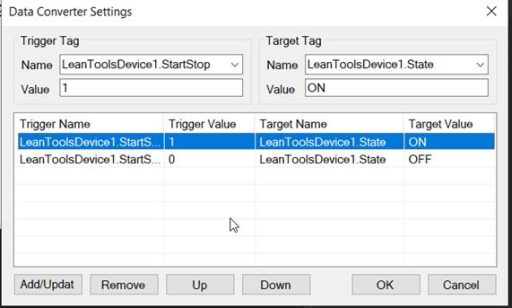
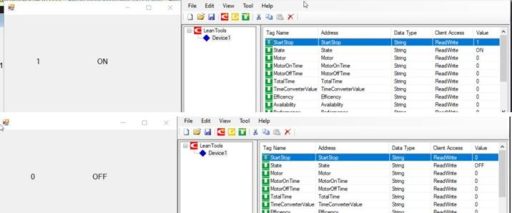
• Result: When the StartStop tag is 1, the State label will display “ON”.
iTimer Tool (Time Measurement)
The ATSCADA iLean iTimer tool is used to measure machine runtime and stoptime for production monitoring and performance analysis.
Configuration Settings:
- TimeRate: 5 (sample data every 5 seconds)
- Collection:
- Trigger Tag: Select Motor
- Value 0 (Machine Stopped):
- Time Span Tag: MotorOffTime
- Value 1 (Machine Running):
- Time Span Tag: MotorOnTime
- Type: Second
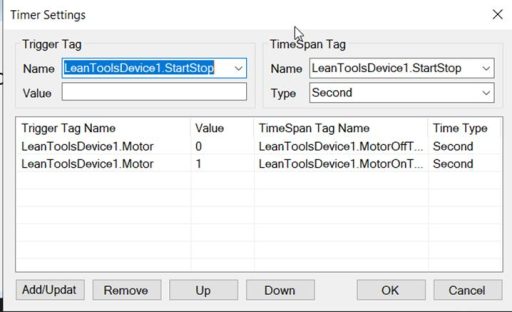
• Result: When the Motor tag is 0, the MotorOffTime tag will start counting seconds. When the Motor tag is 1, the MotorOnTime tag will start counting seconds.

MOTOR = 0

When MOTOR = 1

iChart Tool (Visual Chart Display)
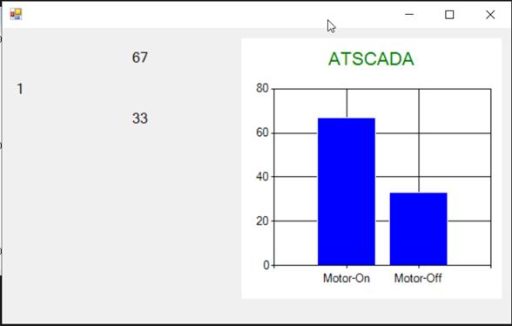
The ATSCADA iLean iChart tool provides a visual display of machine runtime and downtime using column charts and ATSCADA iGaugeLiveChart real-time SCADA live charts for easier monitoring and analysis.
Configuration Settings:
- Driver: iDriver1
- ChartType: Column
- Collection: Add 2 data rows:
- Tag: MotorOnTime
- Set color: Green
- Tag: MotorOffTime
- Set color: Red
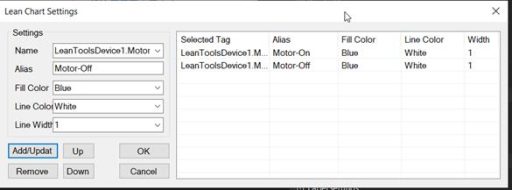
• Result: The chart will display the value of TagName in graph form.
iTimerConverter Tool (Time Unit Conversion)
The ATSCADA iLean iTimerConverter tool is used to convert time values from seconds into minutes or hours for easier monitoring and reporting.
Configuration Settings:
- FromTag: MotorOnTime (current unit: Seconds)
- ToTag: TimeConverterValue (target output value)
- ToType: Minute
- DecimalPlaces: 1 (display 1 decimal place)
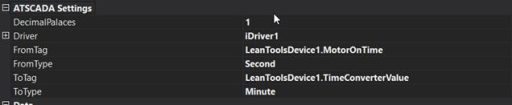
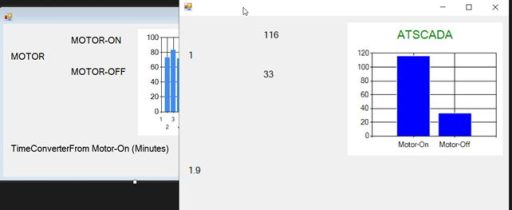
• Result: The TagName TimeConverterValue is represented by the MotorOnTime value in seconds converted to minutes.
Calculation Tools (iAdder & iMultiplier)
The ATSCADA iLean calculation tools help process production data and generate important performance values automatically.
iAdder Tool (Addition Calculator)
The ATSCADA iLean iAdder tool is used to calculate the total operating time by adding runtime and downtime values.
Configuration Settings:
- Collection: Select MotorOnTime and MotorOffTime (Scale: 1)
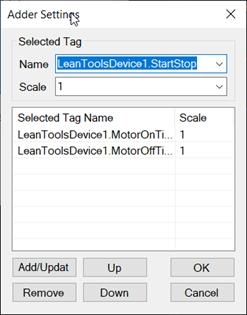
Result: Assign to the TotalTime tag.
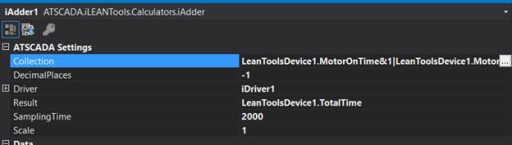
- Result: The TotalTime Tag value equals MotorOnTime + MotorOffTime.
iMultiplier Tool (Multiply / Divide Calculator)
The ATSCADA iLean iMultiplier tool is used to calculate production efficiency automatically.
Formula:
Efficiency = (MotorOnTime / TotalTime) × 100
Configuration Settings:
- Tag 1: MotorOnTime (Power = 1)
- Tag 2: TotalTime (Power = -1 to perform division)
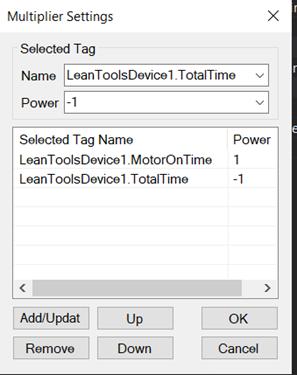
- Scale: 100 (To get the percentage).
- Result: Tag Efficiency.
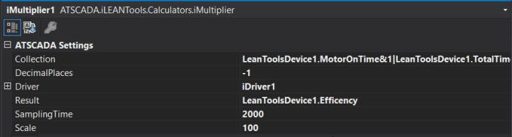
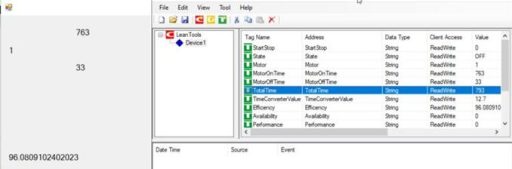
Result: The TagName Efficency value equals the value of the Tag MotorOnTime / TotalTime.
iRounders Tool (Number Rounding)
The ATSCADA iLean iRounders tool is used to limit decimal places for a cleaner and more professional interface.
Configuration Settings:
- DecimalPlaces: 1
- Input: Select the tag to round (example: Efficiency)
- Output: Tag that stores the rounded value
iCircularProgress Tool (Circular Gauge)
The ATSCADA iLean iCircularProgress tool displays percentage KPIs such as Efficiency, Quality, and other production metrics using ATSCADA iGauge DevExpress style dashboards.
Configuration Settings:
- Driver: iDriver1
- TagName: Select the target tag (example: Efficiency)
- InnerColor / OuterColor: Customize gauge colors
- TextMode: Value or Percentage
iAvailability Tool
The ATSCADA iLean iAvailability tool calculates equipment availability.
Formula:
Availability = Operating Time / Planned Production Time
Configuration Settings:
- Driver: iDriver1
Properties:
- OperatingTime: Tag containing actual operating time
- PlannedProductionTime: Tag containing planned production time
- Availability: Output result tag

iPerformance Tool
The ATSCADA iLean iPerformance tool calculates production performance based on ideal production speed.
Formula:
Performance = Total Pieces / (Operating Time × Ideal Run Rate)
Configuration Settings:
- Driver: iDriver1
Properties:
- TotalPieces: Tag containing total products
- OperatingTime: Tag containing operating time
- IdealRunRate: Tag containing ideal production speed
- Performance: Output result tag
iQuality Tool
The ATSCADA iLean iQuality tool calculates quality ratio based on qualified products.
Formula:
Quality = Good Pieces / Total Pieces
Configuration Settings:
- Driver: iDriver1
Properties:
- GoodPieces: Tag containing qualified products
- TotalPieces: Tag containing total products
- Quality: Output result tag
iOEE Tool
The ATSCADA iLean iOEE tool calculates Overall Equipment Effectiveness.
Formula:
OEE = Availability × Performance × Quality
Configuration Settings:
- Driver: iDriver1
Properties:
- Availability: Availability value tag
- Performance: Performance value tag
- Quality: Quality value tag
- OEE: Output OEE result tag
iUtilization Tool
The ATSCADA iLean iUtilization tool calculates equipment utilization based on total yearly available time.
Formula:
Utilization = (Operating Hours per Day × Operating Days per Year) / (24 × 365)
Configuration Settings:
- Driver: iDriver1
Properties:
- OperatingDaysPerYear: Tag containing operating days per year
- OperatingHoursPerDay: Tag containing operating hours per day
- Utilization: Output utilization result tag
iTEEP Tool
The ATSCADA iLean iTEEP tool calculates Total Effective Equipment Performance.
Formula:
TEEP = OEE × Utilization
Configuration Settings:
- Driver: iDriver1
Properties:
- Utilization: Utilization value tag
- OEE: OEE value tag
- TEEP: Output TEEP result tag
👉 Learn More about SCADA Software

ATSCADA - Smart SCADA Software with AI Predictor & Blockchain. ATSCADA is an advanced SCADA software platform for real-time monitoring, intelligent control, and efficient data acquisition. It is ideal for Industrial IoT (IIoT), smart cities, integrated automation systems, and Agriculture 4.0. With a built-in AI Predictor, ATSCADA enables predictive analytics to detect issues early, optimize performance, and reduce downtime. The integration of Blockchain technology ensures secure, transparent, and tamper-proof data management. Highly scalable and easy to integrate, ATSCADA is trusted by businesses to enhance productivity, strengthen cybersecurity, and accelerate digital transformation.
Related articles
ATSCADA iStreamCameraTools – Industrial IP Camera Integration and Real-Time Video Monitoring
The iStreamCameraTools toolkit enables the connection of ONVIF-compatible cameras to receive camera streams and display [...]
Jun
OPC Server Connection Guide
Overview The ATSCADA ecosystem provides exceptional flexibility for integrating data from third-party OPC Servers (such [...]
Jun
Common ATSCADA Errors and How to Fix Them – FAQ for ATSCADA Tools and Systems
Issues Related to ATDriverServer & iTagBuilder Software Why Does ATDriverServer Not Open? There are two [...]
May
ATSCADA Hospital Temperature and Humidity Monitoring Alarm System Project
Requirements: The system includes three monitoring areas: the pharmacy, inpatient warehouse, and cold storage, following [...]
May
ATSCADA CookBook: Complete Guide to System Architecture, Tools, Installation & Troubleshooting
The ATSCADA Training book is an essential navigation structure that helps users access all major [...]
Apr
ATSCADA Power Management System
Requirements: There are 3 areas that require power management, including a factory, a residential zone, [...]
Apr