
SCADA Software
ATSCADA IExcelPouringTools – Smart Excel Pouring Data Management for Industrial Automation
ATSCADA IExcelPouringTools is a powerful toolkit designed to generate Excel reports from pre-built templates without complex programming or coding, with support for data exchange through Web API integration. It helps businesses automate reporting tasks, save time, and improve data management efficiency.
System Preparation and Installation
Step 1: Install the IExcelPouringTools Package
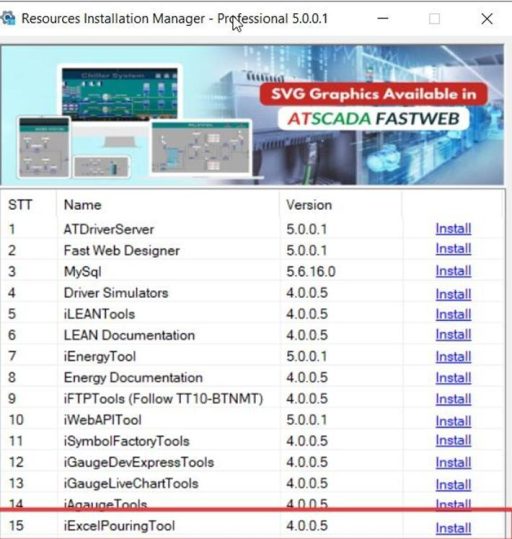
- Open the Resources Installation Manager software.
- Find IExcelPouringTools (Version 4.0.0.5) in the list.
- Click the Install button.
- When the Setup window appears, click Install and then Finish to complete the installation of ATSCADA IExcelPouring.
Step 2: Configure ATDriver Server (Create Data Tags)
This is a very important step to create the data source for calculation tools in ATSCADA IExcelPouring.
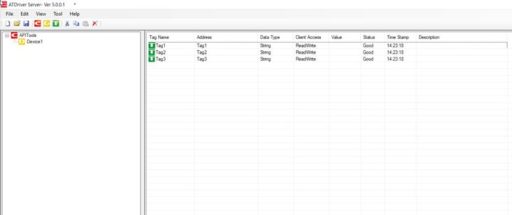
Open ATDriver Server. Go to File -> New. Add a Channel named ExcelPouringTool and select the driver InternalMemory.all.dll. Add a Device named Device 1. Create the following Tags (Data Type: String/Double):
- Tag1
- Tag2
- Tag3
Go to File -> Save As and save the file as ExcelPouringTools.xml
Step 3: Configure iTagBuilder
Open iTagBuilder and select New -> Yes.
At Driver Name, enter ATDriver. Click Add Driver and select the file ATDriverClient.dll.
Enter the IP Address of the computer running Driver Server (for example: 192.168.1.122) or keep the default localhost. Click Connect.
Go to Tools -> Import All. Select the Device and click OK.
Go to File -> Project Register, save the file name, and click Yes to register tags into the ATSCADA IExcelPouring system.
Interface Design on Visual Studio
Step 4: Integrate iExcelPouringTool into Toolbox
Open Visual Studio and create a Windows Forms App (.NET Framework) project.
In the Toolbox, right-click and select Add Tab, then name it ATSCADA iExcelPouringTool.
Right-click the new tab and select Choose Items…. Click Browse and go to the installation path:
C:\Program Files\ATPro\ATSCADA\iExcelPouringTools\iExcelpouring.dll
Click OK. The tool icons will appear in the Toolbox.

Detailed Guide for Tools (iExcelPouringTool)
Important Note: Always drag the iDriver tool onto the Form before using other tools in ATSCADA IExcelPouring.
iExcelPouringTool
- Description: Drag iExcelPouring onto the Form.
- Properties Settings:
- Driver: Select iDriver1.
- ExcelSettings: Click the three-dot button. Select a Tag (for example Tag1), enter Column Address (starting column for data input, for example C), and Row Address (starting row, for example 5). Click Add/Update -> OK.
- SourcePath: Paste the path to the Excel template file. The file extension must be .xlsx.
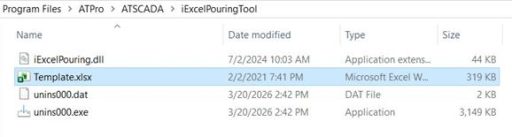
The current SourcePath template file is located in:
C:\Program Files\ATPro\ATSCADA\iExcelPouringTool\Template.xlsx
This template file is used by ATSCADA IExcelPouring for automatic Excel report generation.
-
Template.xlsx
When we open it, we will see a sample template.
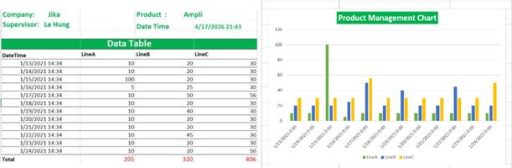
We will use the template file above in this example for ATSCADA IExcelPouring.
-
Separator
- Semicolon ( ; ): Used to move to the next column.
- At sign ( @ ): Used to move to a new row.
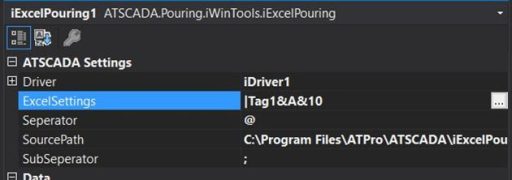
After successfully configuring the properties of iExcelPouring in ATSCADA IExcelPouring, on the Windows Forms application interface, drag a Button onto the Form to assign the Pouring event:
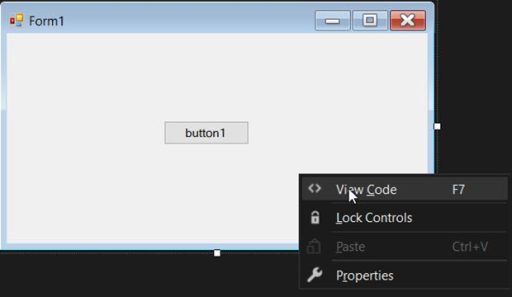
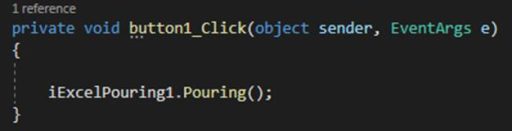
The purpose is to trigger the Pouring event and copy the template file configured in Properties -> SourcePath.
Run the application, then click button1 that was created to trigger the button1_click event and call the Pouring function in ATSCADA IExcelPouring.
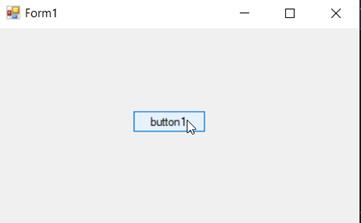
We select the folder containing the Output file of the Pouring function, which can be transferred automatically through ATSCADA iFtp for remote sharing and backup.
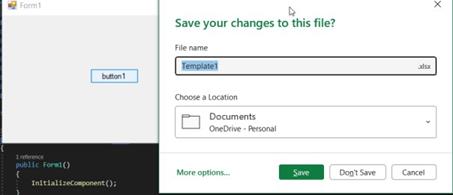
After successfully saving the file, open it to see the result.
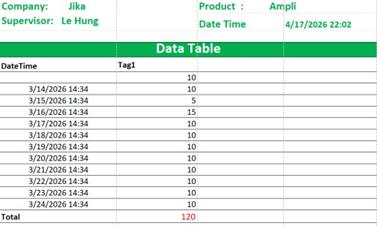
You will see that the data you assigned in ExcelSettings has been assigned to the template you selected.
Real Applications of ATSCADA IExcelPouring
ATSCADA IExcelPouring is ideal for many industries, including:
- Water treatment plants
- Power monitoring systems
- Manufacturing production lines
- Environmental monitoring stations
- Energy management systems
- Smart factory reporting solutions
Conclusion
If you need a reliable solution for automated Excel reporting in industrial automation, ATSCADA IExcelPouring is the perfect choice. It combines flexibility, simplicity, and performance to help organizations modernize their reporting systems and optimize workflow efficiency.
👉 Learn More about ATSCADA Software

ATSCADA - Smart SCADA Software with AI Predictor & Blockchain. ATSCADA is an advanced SCADA software platform for real-time monitoring, intelligent control, and efficient data acquisition. It is ideal for Industrial IoT (IIoT), smart cities, integrated automation systems, and Agriculture 4.0. With a built-in AI Predictor, ATSCADA enables predictive analytics to detect issues early, optimize performance, and reduce downtime. The integration of Blockchain technology ensures secure, transparent, and tamper-proof data management. Highly scalable and easy to integrate, ATSCADA is trusted by businesses to enhance productivity, strengthen cybersecurity, and accelerate digital transformation.
Related articles
ATSCADA iStreamCameraTools – Industrial IP Camera Integration and Real-Time Video Monitoring
The iStreamCameraTools toolkit enables the connection of ONVIF-compatible cameras to receive camera streams and display [...]
Jun
OPC Server Connection Guide
Overview The ATSCADA ecosystem provides exceptional flexibility for integrating data from third-party OPC Servers (such [...]
Jun
Common ATSCADA Errors and How to Fix Them – FAQ for ATSCADA Tools and Systems
Issues Related to ATDriverServer & iTagBuilder Software Why Does ATDriverServer Not Open? There are two [...]
May
ATSCADA Hospital Temperature and Humidity Monitoring Alarm System Project
Requirements: The system includes three monitoring areas: the pharmacy, inpatient warehouse, and cold storage, following [...]
May
ATSCADA CookBook: Complete Guide to System Architecture, Tools, Installation & Troubleshooting
The ATSCADA Training book is an essential navigation structure that helps users access all major [...]
Apr
ATSCADA Power Management System
Requirements: There are 3 areas that require power management, including a factory, a residential zone, [...]
Apr